Ctrl+Z Is Used For: Complete Guide to the Undo Shortcut (2026)

Quick answer
Ctrl+Z is used for Undo, it instantly reverses your last action in almost any Windows, Mac, or Linux application.
- Works in Word, Excel, Photoshop, VS Code, File Explorer, and browsers
- Press multiple times to undo several steps in a row
- Opposite shortcut: Ctrl+Y (Windows) or Ctrl+Shift+Z to redo
- On Mac, the equivalent is Command+Z
- In Linux terminals, Ctrl+Z suspends a running process (not undo)
Every time you make a mistake on a computer, one shortcut fixes it in under a second. Ctrl+Z the universal Undo command is used for reversing your last action across Windows, Mac, and Linux, in everything from Word and Excel to Photoshop, VS Code, and File Explorer.
Press it once to undo one step. Press it ten times to undo ten. Most users treat it as a simple typo-fixer. But Ctrl+Z does far more than that and it behaves completely differently depending on whether you’re in a terminal, a collaborative document, or a creative suite.
This guide covers exactly what Ctrl+Z does in every major context, its undo limits per app, when it stops working, and the 1974 Xerox PARC origin story most articles skip entirely.
Ctrl+Z in Microsoft Office (Word, Excel, PowerPoint, Outlook)
Microsoft Office is where most people first discover the full power of Ctrl+Z. Across Word, Excel, PowerPoint, and Outlook, the shortcut works consistently but each application has its own undo depth, behaviour quirks, and limitations worth knowing.
Microsoft Word
Word has the most generous undo implementation of any major application. It maintains a complete undo history for the entire session with no fixed step limit you can undo changes made hours ago as long as the document remains open. Each action a typed character, a formatting change, a paste, a style update is stored individually on the undo stack.
One important exception: Word clears the undo history when you run a macro. If you need to reverse changes made before a macro ran, you cannot use Ctrl+Z you will need to close without saving and reopen the last saved version.
learn more: MS Word Shortcut Keys
Microsoft Excel
Excel defaults to 100 undo levels enough for most users, but it can be increased. Power users working with large datasets or complex formula edits can raise this limit via the Windows Registry: navigate to HKEY_CURRENT_USER\Software\Microsoft\Office[version]\Excel\Options and set the UndoHistory value between 1 and 100. Note that increasing undo levels in Excel consumes more RAM, which can slow performance on large workbooks.
Excel also clears the undo stack when you perform certain actions: adding or deleting a worksheet tab, running a macro, or saving a shared workbook. These are permanent there is no way to undo past these reset points.
Read More: MS Excel Shortcut Keys
Microsoft PowerPoint
PowerPoint defaults to 20 undo levels the most restrictive of the main Office apps. This limit can also be changed via the Registry using the same method as Excel. For presentation designers who make frequent iterative changes to slide layouts, it is worth increasing this to at least 50.
learn more: PowerPoint Keyboard Shortcuts
Microsoft Outlook
Outlook’s undo support is limited to the email composition window only. You can undo typed text, formatting changes, and paste operations while writing an email. However, Ctrl+Z does not work for actions performed in the main Outlook interface deleting emails, moving messages between folders, or applying rules cannot be undone with the keyboard shortcut.
Read More: Outlook Keyboard Shortcuts
Ctrl+Z in Creative Software (Photoshop, Illustrator, Premiere Pro)
Creative software handles undo differently from productivity apps instead of a simple linear stack, many Adobe applications use a History panel that gives you a visual, non-linear view of every state your project has been in. Ctrl+Z is still the shortcut, but what it interacts with under the hood is more sophisticated.
Adobe Photoshop
Photoshop defaults to 50 history states each state representing a discrete action such as a brush stroke, a filter application, or a layer move. You can increase this up to 1,000 history states in Edit → Preferences → Performance → History States, though higher values consume significantly more RAM.
Photoshop’s History panel (Window → History) lets you jump to any previous state visually, not just step backward one at a time. This is more powerful than a standard undo stack you can click directly on a state from 30 actions ago without pressing Ctrl+Z 30 times. The redo shortcut in Photoshop is Ctrl+Shift+Z, not Ctrl+Y.
Photoshop tip: enable the History Brush tool alongside your undo history. It lets you paint back a previous state onto specific areas of an image essentially selective, non-destructive undo on a pixel level.
Adobe Illustrator
Illustrator supports 100 undo levels by default, making it more generous than Photoshop out of the box. Like Photoshop, its redo shortcut is Ctrl+Shift+Z. One key difference: Illustrator’s undo history is not preserved when you close and reopen a file saving and closing resets the stack entirely.
Adobe Premiere Pro
Premiere Pro offers 32 undo levels for timeline edits cuts, transitions, clip moves, audio adjustments, and effect changes. The History panel is also available (Window → History) and functions similarly to Photoshop’s. For video editors working on complex timelines, 32 levels can feel restrictive increasing this in Preferences → General → Maximum Number of Undo Levels is recommended for any serious project work.
Ctrl+Z in Code Editors (VS Code, Sublime Text, Notepad++)
Code editors treat undo as a critical safety net losing code to an accidental deletion or overwrite can cost hours of work. As a result, most modern code editors implement deeper and more persistent undo histories than productivity or creative apps.
Visual Studio Code (VS Code)
VS Code has one of the most powerful undo implementations of any application. Its undo history is unlimited within a session and uniquely persists after you save the file. This means you can save a file, continue editing, and still press Ctrl+Z to undo changes made before the last save. The undo history is stored per file tab and is cleared only when you close the tab or the application.
VS Code also tracks file-level operations from the Explorer sidebar in its undo stack. If you rename, move, or delete a file using the Explorer panel, pressing Ctrl+Z immediately afterward will reverse that operation. This does not apply to operations performed in the integrated terminal shell commands like rm or mv bypass VS Code’s undo stack entirely.
VS Code tip: use Ctrl+Z after accidentally deleting or renaming a file in the Explorer sidebar it will be restored immediately, no backup needed. If you used the terminal, check the Recycle Bin or use git checkout if the project is version-controlled.
Sublime Text
Sublime Text maintains an unlimited undo history per tab for the duration of the session. Like VS Code, the history is cleared when the tab is closed. Sublime Text uses Ctrl+Shift+Z for redo. One standout feature: Sublime Text records each individual keystroke as a separate undo step so pressing Ctrl+Z repeatedly steps back character by character, which is more granular than some editors that group actions.
learn more: Sublime Text Keyboard Shortcuts
Notepad++
Notepad++ offers unlimited undo per tab for the session, with Ctrl+Y as the redo shortcut (matching Microsoft Office rather than the Ctrl+Shift+Z convention used by most other editors). Notepad++ also displays the number of available undo steps in the status bar a small but useful indicator that tells you exactly how far back you can go before the history runs out.
Ctrl+Z in File Explorer (Windows) and Finder (Mac)
One of the most underused applications of Ctrl+Z is in file management. Both Windows File Explorer and macOS Finder support undo for a range of file operations making it possible to instantly recover from accidental moves, renames, and deletions without digging through backup tools.
Windows File Explorer
In File Explorer, Ctrl+Z reverses the following actions when pressed immediately after performing them:
- Move – a file dragged to the wrong folder is returned to its original location
- Rename – the file or folder reverts to its previous name
- Copy – the copied file or folder is deleted from the destination
- Delete (Recycle Bin) – the file is restored from the Recycle Bin to its original location
Critical limitation: Ctrl+Z cannot recover a file deleted with Shift+Delete (permanent deletion). It also cannot undo file content changes if you edited and saved a file in Notepad and then pressed Ctrl+Z in File Explorer, the file content is not affected. File Explorer undo only applies to file system operations, not file content.
File Explorer’s undo history is shallow it typically tracks only the last few operations, not a deep history stack. Always press Ctrl+Z immediately after making an accidental change.
macOS Finder
Finder supports Command+Z for the same set of operations: undoing file moves, renames, copies, and Trash deletions. Like File Explorer, the undo depth is limited Finder tracks a small number of recent file operations rather than a full session history. The redo shortcut in Finder is Command+Shift+Z.
Finder limitation: once you empty the Trash, Command+Z cannot recover those files. macOS Time Machine or a third-party recovery tool is required for permanently deleted files.
Ctrl+Z in Web Browsers
Ctrl+Z works in web browsers, but only within specific contexts it is not a global browser-level undo like it is in Word or Photoshop. Understanding where it works and where it doesn’t saves a lot of frustration.
Where Ctrl+Z works in browsers
- Text input fields and textareas: typing in a search box, a comment field, a contact form, or any editable text area supports Ctrl+Z to undo typed characters
- Rich text editors: online editors like Google Docs, Notion, WordPress’s block editor, and TinyMCE all implement their own undo stacks accessible via Ctrl+Z
- Browser address bar: Ctrl+Z reverses text typed or pasted into the URL bar in Chrome, Firefox, and Edge
Where Ctrl+Z does not work in browsers
- Closed tabs: Ctrl+Z cannot reopen a closed tab; use Ctrl+Shift+T for that
- Form submissions: once a form is submitted, Ctrl+Z cannot unsend it
- Page navigation: Ctrl+Z does not go back in browser history; use Alt+Left Arrow or the back button
- Downloaded files: Ctrl+Z cannot cancel a completed download
Google Docs note: Ctrl+Z in Google Docs only undoes your own changes, not changes made by collaborators. In a shared document, each user maintains an independent undo stack pressing Ctrl+Z will never reverse another person’s edits, only your own.
Browser-specific behaviour
Chrome, Firefox, Edge, and Safari all support Ctrl+Z (or Command+Z on Mac) in input fields. Safari on Mac has historically had more limited multi-level undo support in certain web form fields compared to Chrome and Firefox if Ctrl+Z stops working after a few steps in Safari, this is a known browser limitation rather than a website issue.
How Ctrl+Z works: the undo stack explained
Pressing Ctrl+Z feels instant but under the hood, every application that supports undo is running a data structure called an undo stack. Understanding how it works explains both the power and the limits of the shortcut.
What is an undo stack?
An undo stack is a chronological record of every action you perform in an application. Each time you make a change typing a character, moving a file, applying a filter the application saves a snapshot of the previous state and pushes it onto the stack. When you press Ctrl+Z, the application pops the most recent snapshot off the stack and restores it, reversing your last action.
This is why pressing Ctrl+Z multiple times steps you backward through your history one action at a time each keypress pops one more entry off the stack.
💡 Think of the undo stack like a pile of photographs of your document, taken automatically after every change. Ctrl+Z pulls the top photo off the pile and shows you the previous one. Ctrl+Y puts it back.
Why undo limits exist
Each snapshot stored in the undo stack consumes memory. Applications set a maximum stack depth called the undo limit or history states to prevent excessive RAM usage. Once the limit is reached, the oldest snapshots are discarded to make room for new ones.
| Application | Undo shortcut | Undo depth | Redo shortcut | Can you increase it? |
|---|---|---|---|---|
| Microsoft Word | Ctrl+Z | Unlimited (session) | Ctrl+Y | No limit |
| Microsoft Excel | Ctrl+Z | 100 levels | Ctrl+Y | Yes, via registry |
| Microsoft PowerPoint | Ctrl+Z | 20 levels | Ctrl+Y | Yes, via registry |
| Microsoft Outlook | Ctrl+Z | Composition only | Ctrl+Y | No |
| Adobe Photoshop | Ctrl+Z | 50 states (default) | Ctrl+Shift+Z | Yes, up to 1,000 |
| Adobe Illustrator | Ctrl+Z | 100 levels | Ctrl+Shift+Z | Yes |
| Adobe Premiere Pro | Ctrl+Z | 32 levels | Ctrl+Shift+Z | Yes |
| VS Code | Ctrl+Z | Unlimited + persists after save | Ctrl+Shift+Z | No limit |
| Sublime Text | Ctrl+Z | Unlimited (session) | Ctrl+Shift+Z | No limit |
| Notepad++ | Ctrl+Z | Unlimited (per tab) | Ctrl+Y | No limit |
| Notepad (Win 11) | Ctrl+Z | Multi-level | Ctrl+Y | No |
| Google Docs | Ctrl+Z | Unlimited (session, local user only) | Ctrl+Y | No |
| GIMP | Ctrl+Z | 5 levels (default) | Ctrl+Shift+Z | Yes, up to unlimited |
| File Explorer (Win) | Ctrl+Z | Last few operations | Ctrl+Y | No |
When the undo stack is cleared
Certain actions reset the undo stack entirely, meaning Ctrl+Z will no longer work for anything before that point. In Microsoft Excel, running a macro clears the undo history. In most applications, closing and reopening a file clears it too with the notable exception of VS Code, which persists undo history across sessions for open files.
Ctrl+Z on Mac – Command+Z explained
On a Mac, the equivalent of Ctrl+Z is Command+Z. It performs the identical Undo function reversing your last action in macOS applications including Pages, Keynote, Numbers, Finder, and virtually every third-party app installed on your Mac.
Mac undo and redo shortcuts at a glance
| Action | Windows shortcut | Mac shortcut |
|---|---|---|
| Undo | Ctrl+Z | Command+Z |
| Redo | Ctrl+Y or Ctrl+Shift+Z | Command+Shift+Z |
| Undo in terminal | Not applicable (suspends process) | Command+Z in most Mac apps; terminal uses Ctrl+Z |
How Command+Z works in macOS apps
Command+Z works through the same undo stack mechanism as Windows each action is recorded in a history buffer, and each press of Command+Z pops the most recent entry. The depth varies by application, but Apple’s own apps Pages, Keynote, and Numbers maintain undo history for the entire session with no fixed limit.
In Finder, Command+Z reverses file moves, renames, and copies the same way Ctrl+Z works in Windows File Explorer. If you accidentally move a file to the wrong folder, pressing Command+Z immediately after restores it to its original location.
One important difference from Windows
On Mac, even in the Terminal app, Ctrl+Z not Command+Z is used to suspend a running process. This is because the Terminal emulates Unix behaviour, where the Control key (not the Command key) sends SIGTSTP. So Mac users get both: Command+Z for undo in GUI apps, and Ctrl+Z for process suspension in the terminal.
When Command+Z doesn’t work on Mac
- After emptying the Trash deleted files cannot be recovered with Command+Z
- After closing a document without saving the undo history is lost
- In some web forms browser input fields may not support multi-level undo on Safari
- System-level changes such as installing or uninstalling apps cannot be undone
Ctrl+Z in Linux and the terminal – it’s not undo
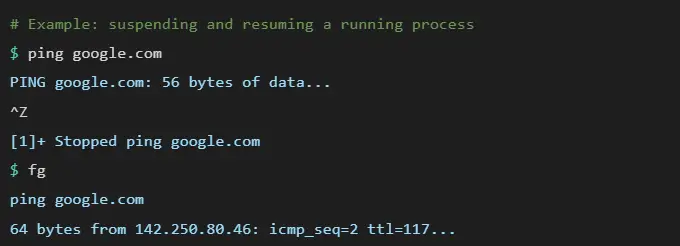
This is where Ctrl+Z behaves completely differently from everything covered so far. In a Linux or Unix terminal and in the macOS Terminal app Ctrl+Z does not undo your last action. Instead, it sends a signal called SIGTSTP to the currently running process, which immediately suspends it and returns control to the shell.
Ctrl+Z in a Linux terminal does not undo anything. It freezes the running process. If you press Ctrl+Z expecting to undo a command, nothing will be reversed the process will simply stop running in the foreground.
What SIGTSTP means and what happens next
SIGTSTP stands for Signal Terminal Stop. When you press Ctrl+Z, the kernel sends this signal to the foreground process, pausing its execution. The process is not killed it remains in memory, holding all its resources and file handles, but it stops doing any work.
After the process is suspended, you have three options:
- Type fg to resume the process in the foreground it continues exactly where it left off
- Type bg to move it to the background it resumes running but your terminal prompt returns
- Type jobs to list all suspended processes in the current shell session
- Type kill %1 (replacing 1 with the job number) to terminate a suspended process entirely
Ctrl+Z vs Ctrl+C in the terminal
| Shortcut | Signal sent | Effect | Process state after |
|---|---|---|---|
| Ctrl+Z | SIGTSTP | Suspends the process | Paused still in memory |
| Ctrl+C | SIGINT | Interrupts/terminates the process | Killed removed from memory |
| Ctrl+D | EOF marker | Closes standard input | Depends on the program |
Ctrl+Z in the Windows Command Prompt
In the Windows Command Prompt (CMD), Ctrl+Z has yet another distinct behaviour it inserts an end-of-file (EOF) marker, displayed as ^Z in the terminal output. This signals to command-line programs that the input stream has ended. It is used when piping data into programs that read from standard input. It does not undo any action and does not suspend processes the way Linux Ctrl+Z does.
Ctrl+Z in VS Code and undoing file deletions
A common question from VS Code users is whether Ctrl+Z can recover a file accidentally deleted from the Explorer panel. The answer depends on the action. If you deleted a file using the VS Code Explorer sidebar, Ctrl+Z immediately after will restore it VS Code tracks file operations in its undo stack. However, if the file was deleted from the terminal inside VS Code using a shell command like rm, Ctrl+Z cannot recover it the file system deletion bypasses VS Code’s undo stack entirely.
The history of Ctrl+Z where the undo shortcut came from
Ctrl+Z is so deeply embedded in modern computing that most users assume it has always existed. It hasn’t. The undo shortcut has a specific origin, a specific inventor, and a specific moment when it became the standard it is today and that story starts in 1974 at Xerox PARC.
The first undo command – Xerox PARC, 1974
The Bravo text editor, developed at Xerox PARC (Palo Alto Research Center) around 1974, is widely credited as the first program to implement a formal undo command. Bravo was a landmark piece of software it also pioneered WYSIWYG editing and was the direct ancestor of Microsoft Word. Its undo feature was revolutionary because, for the first time, users could make changes without fear of making irreversible mistakes.
Before undo existed, computer users had to be extremely careful with every action errors were often permanent and difficult or impossible to fix. The introduction of undo fundamentally changed the psychology of computing: it made experimentation safe.
Larry Tesler and the standardisation of Ctrl+Z
The specific Ctrl+Z key binding was standardised in the early 1980s through the work of Larry Tesler and Tim Mott at Xerox PARC. Tesler who later joined Apple and is credited with popularising cut, copy, and paste helped establish Ctrl+Z, Ctrl+X, Ctrl+C, and Ctrl+V as a coherent, memorable keyboard shortcut system.
The choice of Z for undo has no mnemonic connection to the word “undo.” It was chosen for its physical position on the keyboard bottom-left of the alphabet row, directly beside Ctrl making it one of the easiest two-key combinations to press with one hand.
From Xerox to Apple to Microsoft
Apple adopted these conventions for its Lisa (1983) and Macintosh (1984) computers using the Command key modifier instead of Ctrl. Microsoft followed with Windows, cementing the shortcuts as the universal computing standard they remain today. When Microsoft published its Common User Access (CUA) guidelines in 1987, Ctrl+Z was formally standardised across all Windows applications which is why it works consistently in virtually every Windows program ever written.
Timeline:
- 1968: File Retrieval and Editing System (FRESS) at Brown University first computer system reported to have an undo feature
- 1974: Bravo text editor at Xerox PARC first formal undo command in a mainstream editor
- Early 1980s: Larry Tesler and Tim Mott standardise Ctrl+Z, Ctrl+X, Ctrl+C, Ctrl+V at Xerox PARC
- 1983: Apple Lisa adopts Command+Z for undo
- 1984: Apple Macintosh ships with Command+Z as standard
- 1987: Microsoft CUA guidelines formally standardise Ctrl+Z across all Windows applications
- Today: Ctrl+Z works in virtually every Windows, Linux, and Mac application ever written
Why this history matters for how Ctrl+Z works today
The reason Ctrl+Z works consistently across thousands of different applications from Microsoft Word to a small indie text editor is not coincidence. It is the direct result of the CUA standardisation that Microsoft enforced in its developer guidelines from 1987 onward. Any application that wanted to feel native on Windows followed those guidelines, and Ctrl+Z was at the top of the list.
Frequently asked questions about Ctrl+Z
What is Ctrl+Z used for?
Ctrl+Z is used for Undo it reverses your most recent action in almost any application on Windows. Whether you deleted text in Word, moved a file in File Explorer, or applied a filter in Photoshop, pressing Ctrl+Z brings it back instantly.
What does Ctrl+Z do on a computer?
On a computer, Ctrl+Z triggers the Undo command. It works by reading the application’s undo stack a record of every recent action and reversing the last entry. You can press it repeatedly to undo multiple steps.
What does Ctrl+Shift+Z do?
Ctrl+Shift+Z is the Redo shortcut in many applications including VS Code, GIMP, and LibreOffice. It reverses an undo if you pressed Ctrl+Z one too many times, Ctrl+Shift+Z restores what you just undone. In Microsoft Office apps, the redo shortcut is Ctrl+Y instead.
Does Ctrl+Z work on Mac?
On Mac, the equivalent of Ctrl+Z is Command+Z it performs the same Undo function across macOS applications including Pages, Keynote, Finder, and most third-party apps. The redo shortcut on Mac is Command+Shift+Z.
What does Ctrl+Z do in Linux?
In Linux terminals, Ctrl+Z does not undo. Instead it sends the SIGTSTP signal to the currently running process, which suspends it and returns control to the shell. Type fg to resume the process in the foreground, or bg to continue it in the background. Use Ctrl+C to terminate a process entirely.
How many times can you press Ctrl+Z?
It depends on the application. Microsoft Word keeps undo history for the entire session with no fixed limit. Excel defaults to 100 undo levels. Adobe Photoshop defaults to 50 history states but can be increased to 1,000 in Preferences. Notepad on Windows 11 supports multi-level undo; older versions support only one step.
What is Ctrl+Z in VS Code?
In Visual Studio Code, Ctrl+Z steps backward through the editor’s undo history reversing typed characters, deletions, paste operations, and formatting changes. VS Code has a notable feature: it maintains the undo history even after you save the file, so you can still undo changes from a previous session as long as the file remains open.
Can Ctrl+Z recover a deleted file?
It depends on how the file was deleted. If you deleted a file using the regular Delete key in File Explorer, pressing Ctrl+Z immediately afterward will restore it to its original location. However, if the file was permanently deleted using Shift+Delete, Ctrl+Z cannot recover it you would need to check Windows backup or a file recovery tool.
What is the difference between Ctrl+Z and Ctrl+Y?
Ctrl+Z is Undo it reverses your last action. Ctrl+Y is Redo it reverses an undo, moving forward through your action history. If you undo three steps with Ctrl+Z and then press Ctrl+Y once, the most recently undone action is restored. Note: taking any new action after undoing clears the redo history permanently.
Why is Ctrl+Z not working?
Ctrl+Z stops working in several situations: the application has reached its maximum undo limit; the action is not undoable (such as saving a file, running a macro in Excel, or deleting a worksheet); the file was closed and reopened in an app that doesn’t preserve undo history; or you are in a context like a terminal where Ctrl+Z has a different function entirely.
Conclusion – Ctrl+Z is more than just undo
Ctrl+Z is one of those shortcuts so fundamental to computing that it’s easy to take for granted. But as this guide shows, it is far more nuanced than a single-sentence definition covers. It undoes actions in Word, steps backward through history states in Photoshop, suspends processes in Linux terminals, inserts an EOF marker in Windows CMD, persists across file saves in VS Code, and traces its roots to a research lab in Palo Alto in 1974.
The single most important thing to remember: Ctrl+Z behaviour is application-specific. The shortcut is universal, but what it does and how far back it can go depends entirely on the undo stack implementation of the software you are using. When it stops working unexpectedly, the answer is almost always one of three things: the undo limit has been reached, the undo history was cleared by a specific action, or you are in a context (like a terminal) where Ctrl+Z serves a completely different purpose.
Quick reference – the most important Ctrl+Z facts:
→ Universal undo shortcut on Windows across almost every application
→ Mac equivalent: Command+Z | Redo: Ctrl+Y (Windows) or Command+Shift+Z (Mac)
→ Linux/Mac terminal: suspends the running process (SIGTSTP) — not undo
→ Undo depth varies: Word (unlimited), Excel (100), Photoshop (50–1,000), PowerPoint (20)
→ VS Code: unlimited undo that persists even after saving the file
→ File Explorer and Finder: supports undo for moves, renames, and Recycle Bin deletions
→ Cannot undo: Shift+Delete (permanent deletion), macro runs, closed file history
→ The shortcut originated at Xerox PARC in 1974, standardised by Microsoft’s CUA guidelines in 1987
If you found this guide useful, the same level of detail is available for every major Ctrl shortcut on this site including Ctrl+Y (redo), Ctrl+C (copy), Ctrl+V (paste), and our complete Ctrl keyboard shortcuts guide.