How to Turn Off Google AI Overviews on Desktop & Mobile

If you want to turn off Google AI Overviews, there’s no official “Disable” button but there are reliable workarounds.
On both desktop and mobile, Google now shows AI-generated summaries at the top of search results. Some people like them. Many don’t.
In this guide, you’ll learn:
- How to disable Google AI Overviews on desktop
- How to remove Google AI summaries on Android and iPhone
- A permanent workaround that hides AI results automatically
- Smart search tricks to avoid AI boxes completely
Let’s fix it step by step.
Can You Turn Off Google AI Overviews?
No, Google does not currently provide a direct setting to turn off AI Overviews.
However, you can remove or bypass them by:
- Switching to the Web filter
- Using the udm=14 search parameter
- Changing your default search engine
- Using browser extensions
The most reliable method is using udm=14.
Why Do People Want to Remove Google AI Overviews?
Most users want to disable Google AI Overviews because:
- AI answers are sometimes inaccurate
- It hides real websites below
- It slows down search experience
- It interrupts research workflows
- It feels cluttered
If you rely on detailed tutorials (like shortcut guides or technical workflows), traditional search results are more reliable.
What Are Google AI Overviews?
Google AI Overviews are AI-generated summaries that appear at the top of search results. They try to answer your query instantly using multiple sources.
They are powered by Google’s generative AI system and appear above regular blue links.
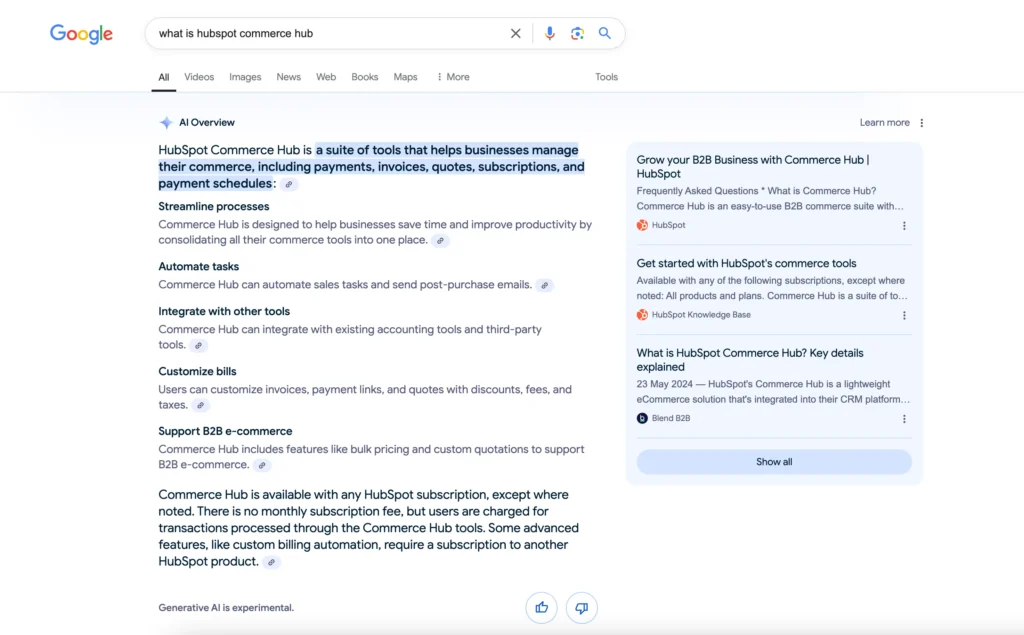
You’ll notice:
- A large summary box
- Links cited inside the AI text
- Expandable answers
- Sometimes follow-up AI questions
Now here’s the important part: Google does NOT provide an official “Turn Off AI Overviews” button (yet). So we use smart alternatives.
How to Turn Off Google AI Overviews on Desktop
Method 1: Use the “Web” Filter (Easiest & Cleanest Way)
This is the simplest solution. Instead of using the default “All” search results, switch to Web results only.
- Search anything on Google
- Below the search bar, click Web
- That’s it, AI Overviews disappear
You’ll now see traditional search results only. What Changes?
- No AI summary box
- Just classic blue links
- Faster loading
- Cleaner layout
If you use Chrome daily, learning essential browser controls can speed up your workflow. Here’s a helpful guide on Chrome Shortcuts that makes searching faster.
Method 2: Add a Custom URL Parameter (Power User Trick)
If you want AI Overviews gone permanently without clicking “Web” every time, do this.
Use This Search URL: https://www.google.com/search?q=YOUR_QUERY&udm=14
The udm=14 parameter forces Google to show Web-only results.
How to Make It Permanent (Desktop):
- Open Google Chrome
- Go to: chrome://settings/searchEngines
- Click Add
- Fill like this:
- Search Engine Name: Google (No AI)
- Shortcut: gweb
- URL: https://www.google.com/search?q=%s&udm=14
Boom, no AI Overview.
If you use productivity tricks like in my Windows Run Commands guide, you’ll love this method. It’s fast and clean.
Method 3: Use a Different Search Engine
If you truly don’t want AI summaries at all, you can switch search engines.
Popular alternatives:
- DuckDuckGo
- Startpage
- Brave Search
These engines:
- Focus on traditional results
- Often prioritize privacy
- Don’t push AI summaries aggressively
But remember search quality may vary compared to Google.
Method 4: Use Browser Extensions
Some browser extensions hide AI Overviews automatically.
Search Chrome Web Store for:
- “Hide Google AI Overview”
- “Disable AI Search Results”
- “Remove AI from Google”
Always check reviews before installing.
Method 5: Use Incognito Mode
Sometimes AI Overviews appear based on personalization. Try:
- Open Incognito window
- Search the same query
Sometimes the AI box won’t appear. This isn’t guaranteed but it works occasionally.
How to Turn Off Google AI Overviews on Android
There is no toggle inside the Google app. But here’s what works.
Option 1: Use the Web Filter (Android)
- Open Google app
- Search your query
- Swipe categories
- Tap Web
AI Overview disappears.
Option 2: Use Chrome with Custom Search Engine
On Android Chrome:
- Open Chrome
- Go to Settings → Search Engine
- Add custom search engine (same method as desktop)
Or simply bookmark this: https://www.google.com/search?q=&udm=14
Now use that bookmark for clean results.
Option 3: Use a Different Browser
Try:
- Brave Browser
- Firefox
If you’re already comfortable with shortcuts (like in my Firefox Shortcuts post), switching browsers may feel easy.
How to Turn Off Google AI Overviews on iPhone
Same story. No official off switch. Here’s what works:
Option 1: Use Safari Web Filter
- Search on Google
- Tap Web
- Done
Option 2: Create a Custom Search Shortcut (iOS Trick)
You can create a Safari search bookmark:
URL: https://www.google.com/search?q=%s&udm=14
Now search through that shortcut instead of default Google.
Quick Comparison: Methods to Disable AI Overviews
| Method | Permanent? | Works on Mobile? | Easy? |
|---|---|---|---|
| Web Filter | No | Yes | Very Easy |
| URL Parameter | Yes (manual setup) | Yes | Easy |
| Different Search Engine | Yes | Yes | Easy |
| Extension | Yes | Desktop only | Moderate |
| Incognito | No | Yes | Easy |
Best overall method: Custom URL (udm=14)
Why Google AI Overviews Cannot Be Fully Disabled
Let’s be realistic. Google wants:
- Faster answers
- AI-driven results
- More engagement
- Competitive edge vs ChatGPT & Bing AI
So full disable is unlikely anytime soon.
When Should You Keep AI Overviews?
Sometimes they’re useful. Good for:
- Quick definitions
- Basic facts
- Simple comparisons
- Math
- General knowledge
Bad for:
- Technical guides
- Product research
- Legal topics
- Medical decisions
- Deep tutorials
If you’re researching detailed workflows (like software shortcut guides), traditional links are far more reliable.
Advanced Tip: Search Operators That Avoid AI Summaries
Use specific search operators:
- Add Quotes – “exact phrase”
- Use Site Search – site:example.com query
- Use Filetype – filetype:pdf
AI Overviews appear less frequently for specific searches.
If you use structured search like this (similar to how I recommend filtering inside tools like Google Drive Shortcuts), your search becomes more precise.
Google AI Overview vs Traditional Search Results
| Feature | AI Overview | Traditional Results |
|---|---|---|
| Speed | Fast summary | Manual reading |
| Accuracy | Mixed | Source-based |
| Control | Limited | Full control |
| Depth | Surface-level | Detailed |
FAQ – Google AI Overview Removal
Not officially. But using udm=14 makes it functionally disabled.
No. AI Overviews are not account-based. They’re system-based. Signing out won’t permanently remove them.
It works regardless of login status. It’s not tied only to personalization.
Sometimes yes. Sometimes no. Always verify important information.
Poorly built ones can. Always check reviews.
It depends on: Query type, Location, Device, Google testing variations
Final Thoughts
Let’s keep this simple. You cannot fully turn off Google AI Overviews with one toggle. But you can:
- Use the Web filter
- Use udm=14
- Switch search engines
- Use browser tools
- Search smarter
If you value speed and control, the custom search engine method is the cleanest long-term solution.
And if you’re someone who likes mastering tools (like learning shortcut keys across apps), this is just another small optimization that makes your workflow smoother.
READ NEXT: